Comment transcrire un MP3 en texte : Guide étape par étape

Résumé rapide
Ce guide vous montre exactement comment transcrire un MP3 en texte à l'aide de WhisperTranscribe. Vous découvrirez le tutoriel étape par étape, les alternatives gratuites incontournables, les meilleures pratiques pour des transcriptions plus propres, ainsi que des conseils pratiques pour améliorer la précision et accélérer votre flux de travail. Consultez les tarifs de WhisperTranscribe pour découvrir ce qui est inclus au-delà de l'essai gratuit.
Vous voulez transcrire un MP3 en texte sans travail manuel ?
Un fichier MP3 est facile à stocker, mais difficile à exploiter lorsqu'on a besoin des mots qu'il contient. Il peut s'agir d'un appel client, d'un épisode de podcast d'un invité ou d'un mémo vocal sur votre téléphone. Tant que cet audio n'est pas transcrit, vous ne pouvez pas facilement y faire de recherche, le citer, l'éditer, le résumer ou le transformer en d'autres contenus.
Avec WhisperTranscribe, la plupart des transcriptions audio se terminent en moins de cinq minutes. Un fichier de 60 minutes prend généralement environ trois à quatre minutes. Mais la vitesse seule ne suffit pas. Vous avez toujours besoin d'une transcription écrite que vous pouvez éditer, exporter et transformer en quelque chose d'utile.
Ce guide WhisperTranscribe détaille l'ensemble du workflow, y compris les étapes exactes, les alternatives gratuites et des conseils pratiques pour obtenir des transcriptions textuelles impeccables.
Pourquoi nous faire confiance ?
Nous avons développé WhisperTranscribe grâce à des années de collaboration avec des podcasteurs, des journalistes, des coachs et des équipes de contenu qui s'appuient quotidiennement sur les enregistrements MP3. Fort de plus de 1 000 avis, ce guide reflète ce que nous avons appris de milliers de projets de transcription audio et les pratiques qui permettent d'obtenir systématiquement des transcriptions plus propres et plus précises.
Pourquoi convertir un MP3 en texte ?
Une transcription textuelle transforme un simple MP3 passif en un actif éditorial exploitable.
Archive consultable : Les fichiers MP3 n'ont pas de texte interne. Une transcription écrite les transforme en un contenu que Cmd+F peut retrouver six mois plus tard. C'est particulièrement utile lorsque vous recherchez une citation spécifique, un sujet ou une demande de client sans avoir à réécouter tout l'enregistrement.
Contenu citable : Extraire une citation exacte d'un MP3 de 40 minutes nécessite de parcourir l'audio en boucle. Une transcription permet d'obtenir cette même citation en un simple copier-coller. C'est extrêmement précieux pour les podcasts, les interviews et la recherche où la précision des mots est essentielle.
Accessibilité : Une partie de votre audience ne peut pas écouter, ne veut pas écouter ou préfère simplement lire. Une transcription écrite ouvre votre contenu à ces trois groupes. Elle permet également de mieux indexer et référencer votre contenu pour le SEO.
Révision plus rapide : Parcourir rapidement une transcription écrite est bien plus efficace que d'écouter en vitesse 1,5x lorsque vous n'avez besoin que d'une seule section. Au lieu de naviguer au hasard des repères temporels, vous pouvez rechercher des mots-clés et aller droit au but.
Recyclage de contenu (Content Repurposing) : Un seul MP3 peut devenir un article de blog, une newsletter, des posts pour les réseaux sociaux et des clips vidéo courts une fois que vous disposez de la transcription écrite. Commencer à partir d'un texte est généralement beaucoup plus rapide que de créer chaque format directement depuis l'audio.
Comment transcrire votre MP3 en texte : Étape par étape
Voici le workflow complet avec WhisperTranscribe. L'ensemble du processus ne prend que quelques minutes pour un MP3 standard.
Étape 1 : Télécharger et installer WhisperTranscribe
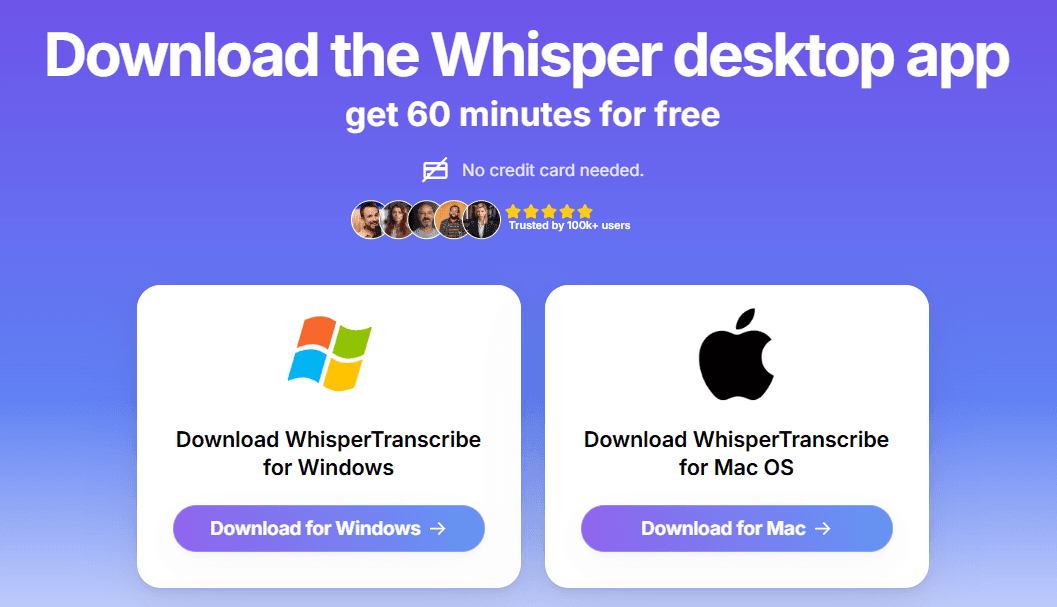
Ouvrez le site WhisperTranscribe.com et cliquez sur "Try for Free" (Essayer gratuitement) en haut à droite.

Choisissez l'installateur Mac ou Windows correspondant à votre ordinateur. Lancez l'installation, puis ouvrez l'application et créez votre compte. L'essai gratuit de 60 minutes s'active immédiatement, sans carte de crédit requise.
Étape 2 : Importer votre fichier MP3
Ouvrez l'application et lancez une nouvelle transcription audio. Vous avez deux options pour importer votre MP3.
Importer depuis votre appareil : Cliquez sur "Upload File" (Téléverser le fichier) et sélectionnez votre MP3. C'est la méthode la plus courante, car les fichiers MP3 sont généralement stockés sur un ordinateur ou dans un dossier de téléchargement.

WhisperTranscribe gère des fichiers allant jusqu'à 5 Go, ce qui permet de traiter de longs épisodes et des enregistrements de plusieurs heures sans avoir à les découper.
Importer depuis une URL ou un flux de podcast : Cliquez sur "From the Web" (Depuis le Web) si votre MP3 est hébergé en ligne.
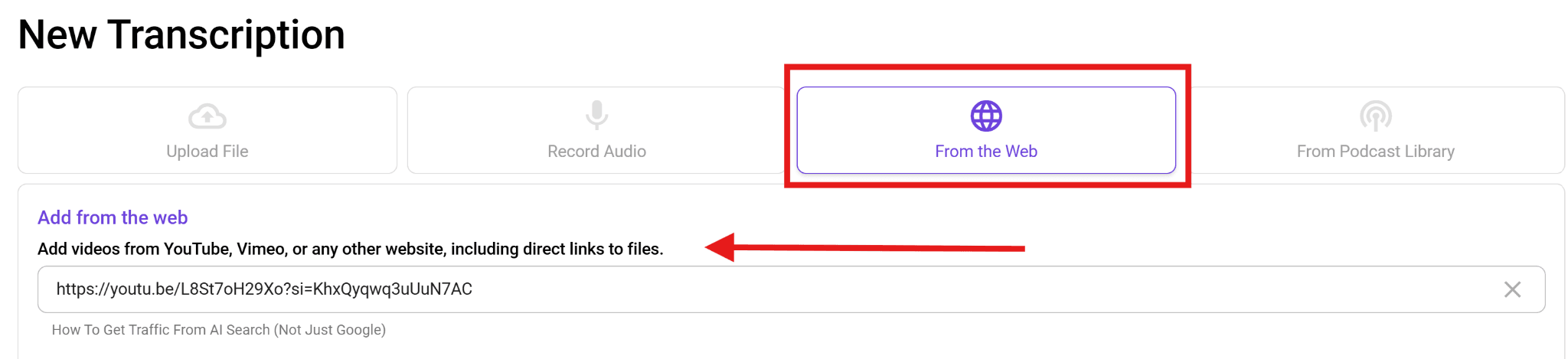
L'application accepte les liens directs vers des fichiers, les URL YouTube et Vimeo, ainsi que les flux RSS de podcasts. L'option RSS est idéale si vous souhaitez transcrire l'intégralité des épisodes d'une émission.
WhisperTranscribe prend également en charge les formats MP4, M4A, WAV, OGG, FLAC, MPEG et d'autres formats audio courants. Il est donc rarement nécessaire de convertir votre fichier au préalable.
Étape 3 : Configurer vos paramètres de transcription
Avant de lancer la transcription audio, configurez quelques détails qui optimiseront la qualité du rendu final.
Nom du projet : Utilisez le titre de l'épisode, le nom de l'interviewé ou la date. Vous vous remercierez plus tard lorsque vous aurez une vaste bibliothèque de transcriptions à explorer.
Langue principale : Choisissez la langue majoritairement parlée dans l'enregistrement. WhisperTranscribe prend en charge plus de 55 langues.
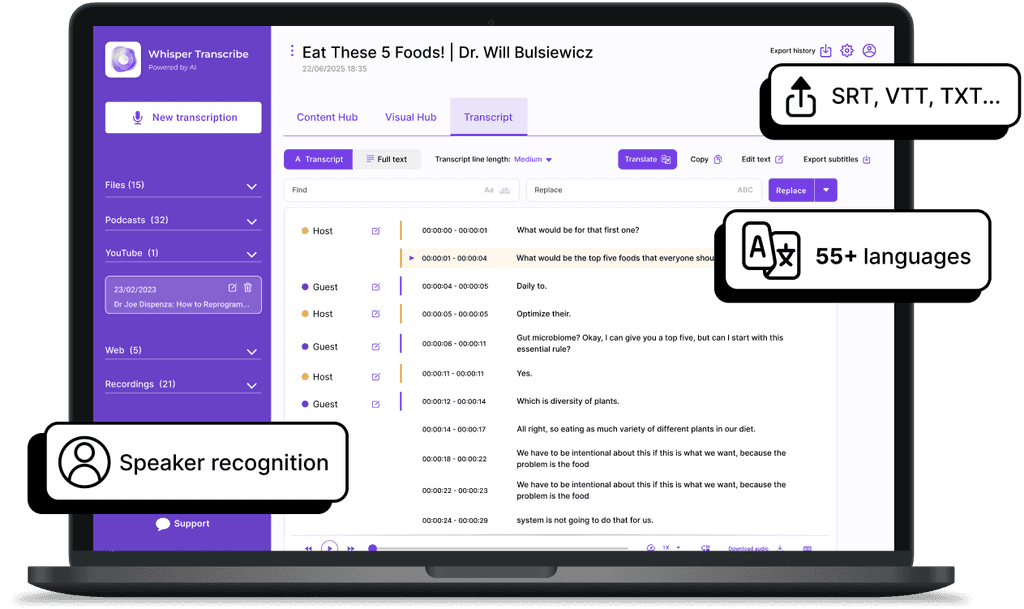
Multilingue : Activez cette option si votre MP3 contient plusieurs langues. Le modèle de transcription IA peut gérer jusqu'à cinq langues dans un seul fichier.
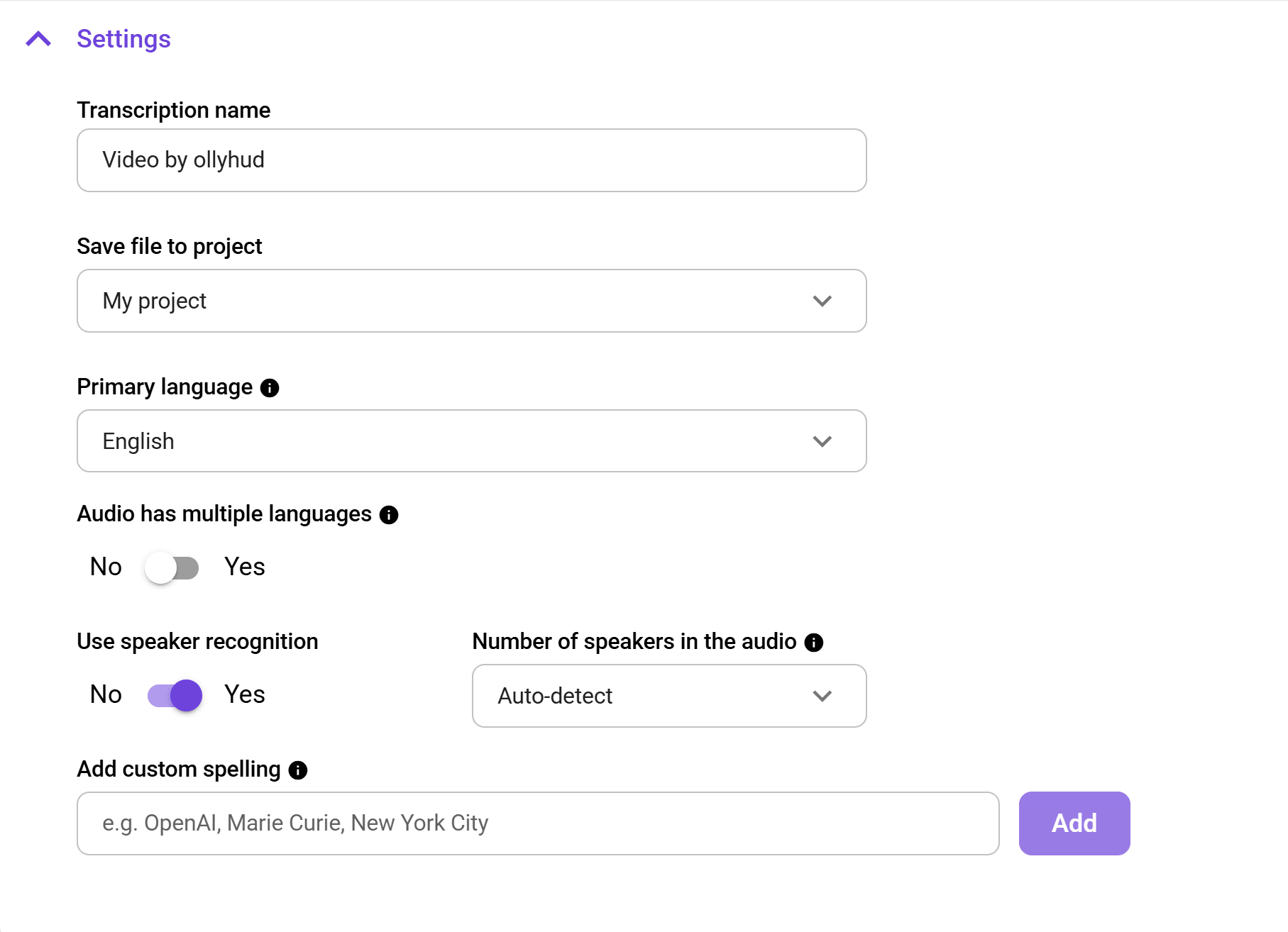
Reconnaissance des locuteurs (Speaker Diarization) : Essentiel pour les interviews, les podcasts avec plusieurs co-animateurs, les tables rondes ou tout MP3 comprenant deux voix ou plus.
Vocabulaire personnalisé : Ajoutez des noms de marque, des termes techniques, des noms d'invités et des acronymes que le modèle de reconnaissance vocale pourrait ne pas connaître. C'est le paramètre le plus efficace pour maximiser la précision de la transcription.
Passer une minute sur ces réglages avant de commencer vous évitera de longues sessions de correction par la suite. Sélectionner la bonne langue améliore la précision de l'IA, tandis que l'identification des locuteurs structure proprement vos conversations.
Vous pouvez également ajouter un dictionnaire personnalisé pour les mots spécifiques que l'outil pourrait ignorer, comme des noms de produits, des jargons techniques ou des noms d'entreprises.
Étape 4 : Lancer la transcription automatique
Cliquez sur "Transcribe Now" pour démarrer. WhisperTranscribe va traiter l'intégralité du MP3 et générer une transcription écrite. Les enregistrements de bonne qualité offrent les meilleurs résultats, et un fichier de 60 minutes prend généralement entre trois et quatre minutes. Les fichiers plus longs prendront un peu plus de temps en fonction de leur durée.
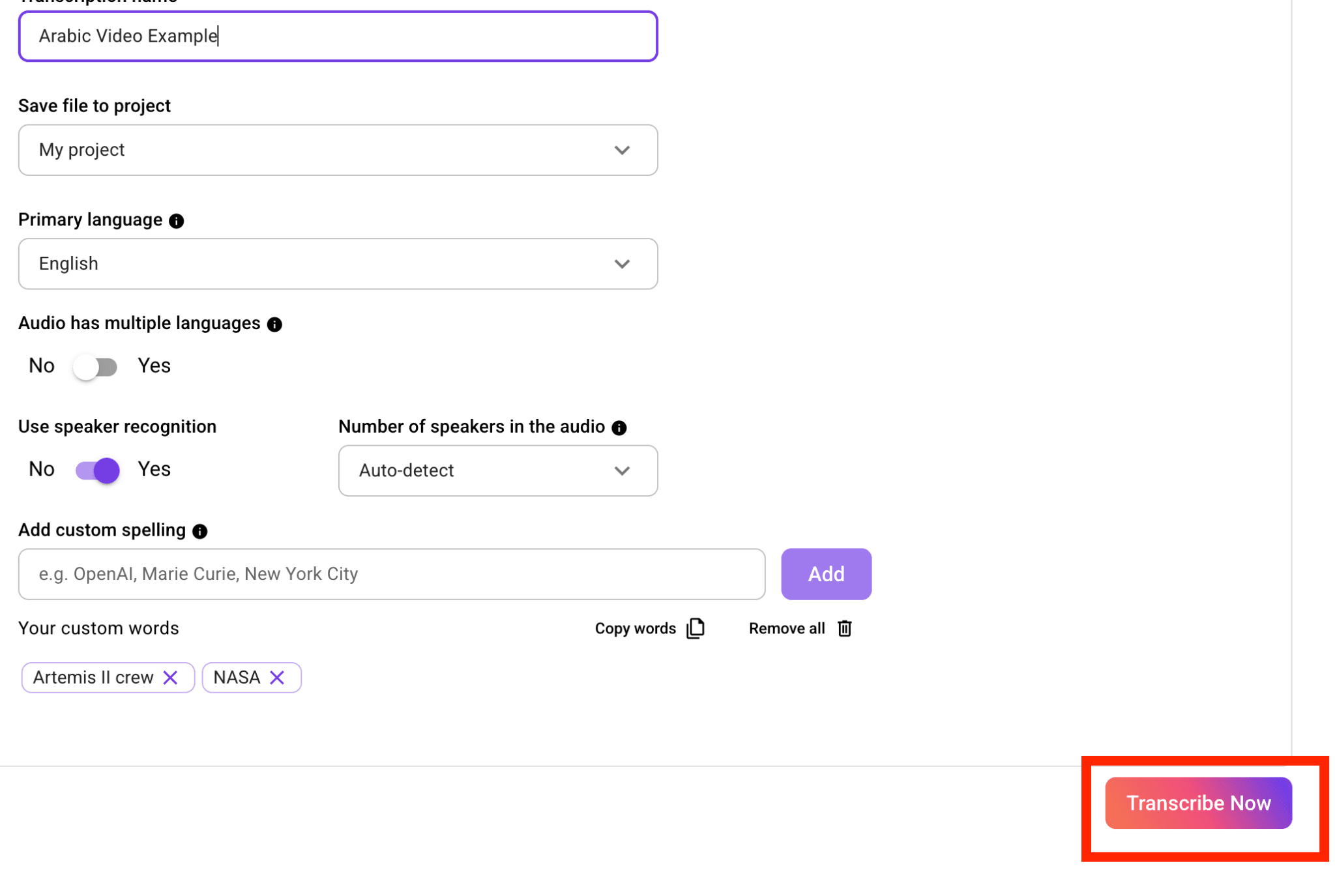
Remarque : Il ne s'agit pas d'une transcription en temps réel ; WhisperTranscribe analyse d'abord l'ensemble de l'audio avant de vous fournir la transcription finale.
Étape 5 : Réviser, éditer et traduire
La transcription s'ouvre dans l'éditeur de texte intégré dès que le traitement est terminé. Chaque ligne est horodatée et synchronisée avec l'audio, ce qui vous permet de cliquer sur n'importe quelle phrase pour écouter l'audio correspondant à ce moment précis.
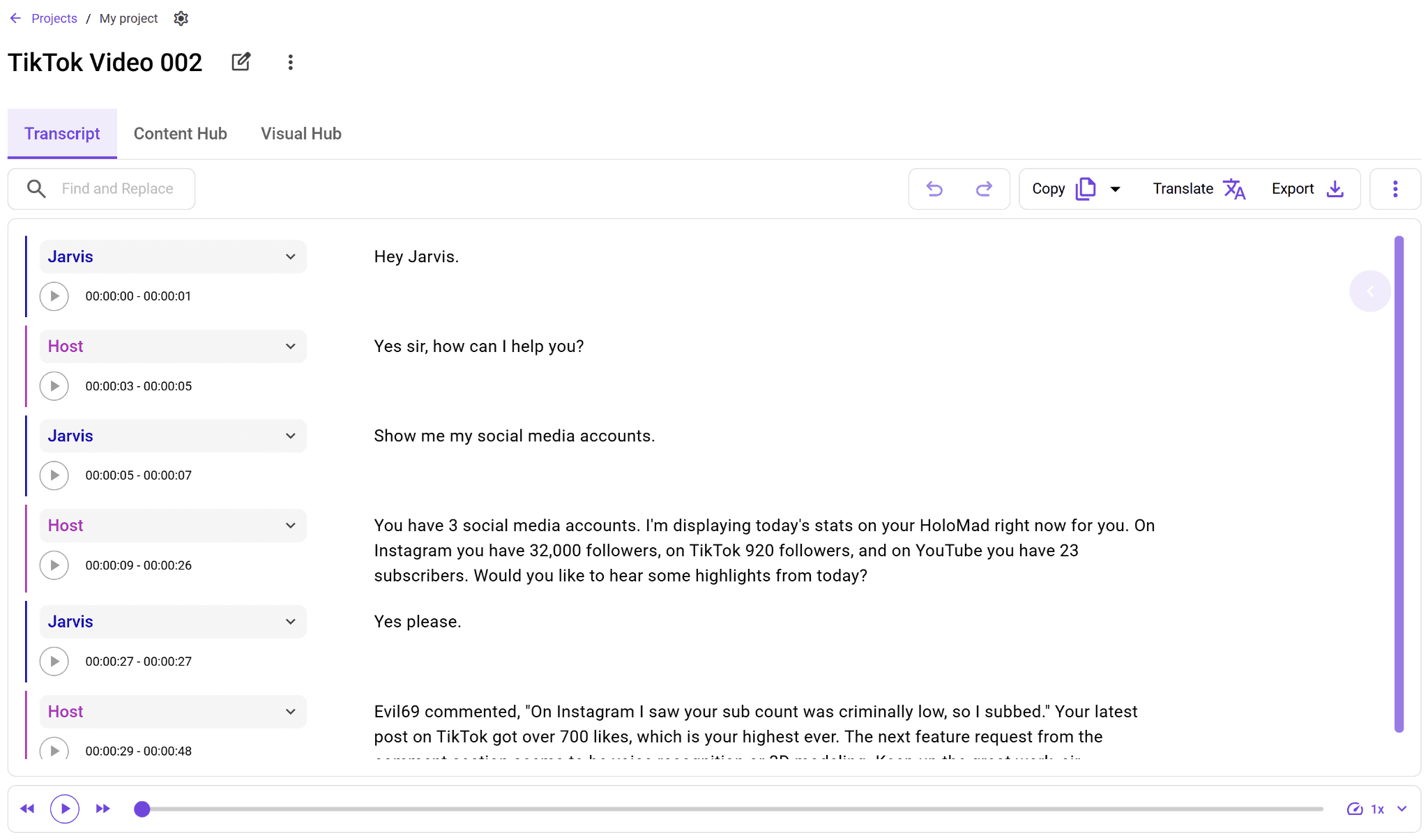
Dans l'éditeur, vous pouvez corriger les mots mal compris, ajuster les étiquettes des locuteurs et surligner les passages clés que vous prévoyez de réutiliser. Si vous souhaitez traduire le texte dans une autre langue, cliquez sur "Translate" et choisissez parmi plus de 99 langues supportées.

La traduction conserve les repères temporels (timestamps), ce qui est idéal pour générer des sous-titres précis.
Étape 6 : Exporter et créer du contenu
Exportez votre transcription écrite dans le format adapté à vos besoins : SRT et VTT pour le sous-titrage vidéo, TXT pour du texte brut, ou Word pour l'édition et le partage de documents.
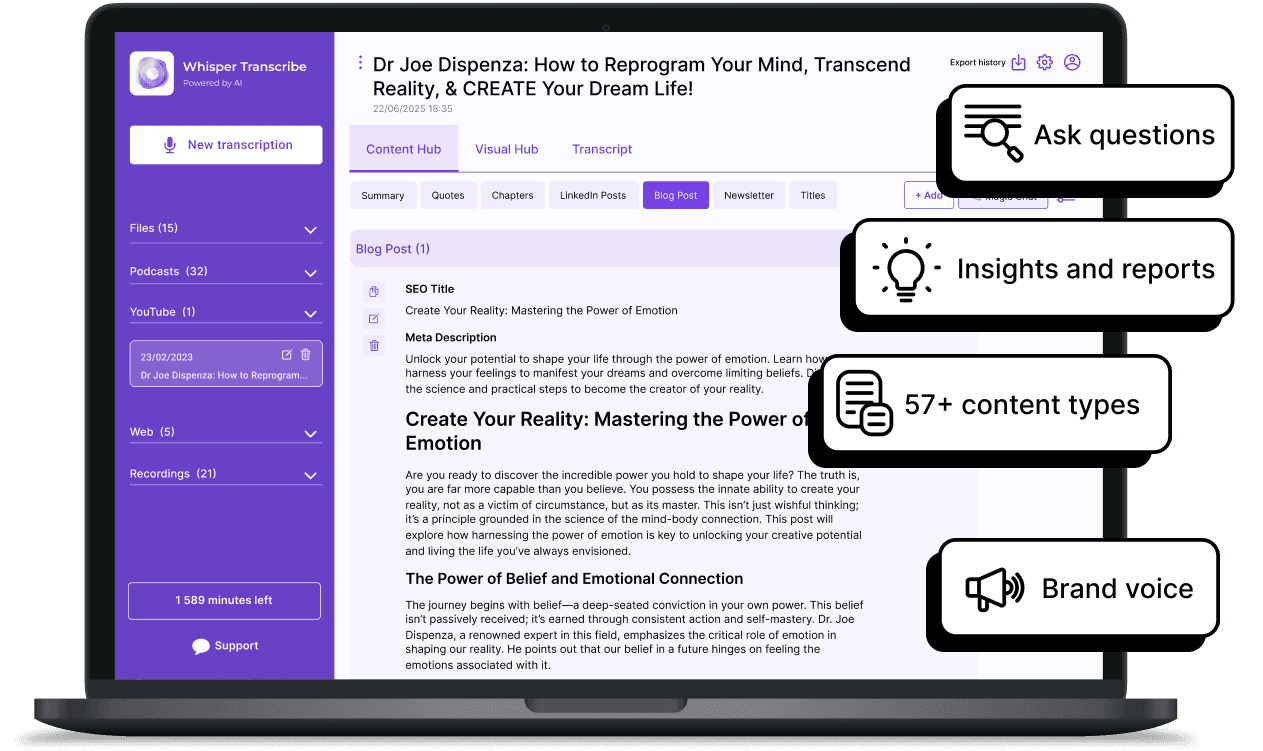
Ouvrez l'onglet Content Hub si vous souhaitez aller au-delà d'une simple transcription écrite. Ce même fichier MP3 peut être transformé en brouillon d'article de blog, en newsletter, en posts LinkedIn, en tweets, en notes de podcast (show notes), en visuels de citations ou en scripts de vidéos courtes.
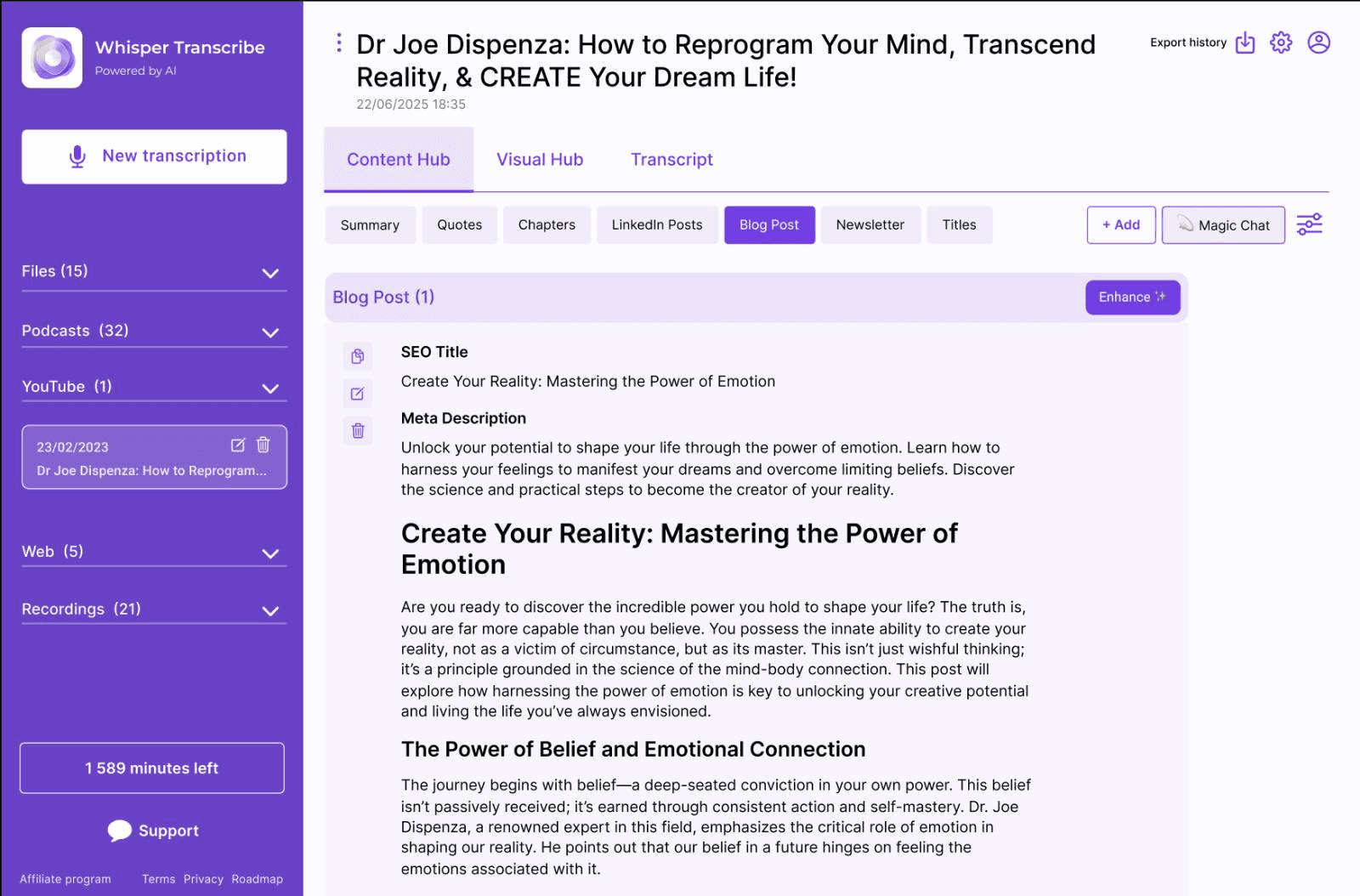
Si vous avez configuré la fonctionnalité de voix de marque (Brand Voice) avec vos contenus précédents, les textes générés conserveront une tonalité cohérente avec votre style.

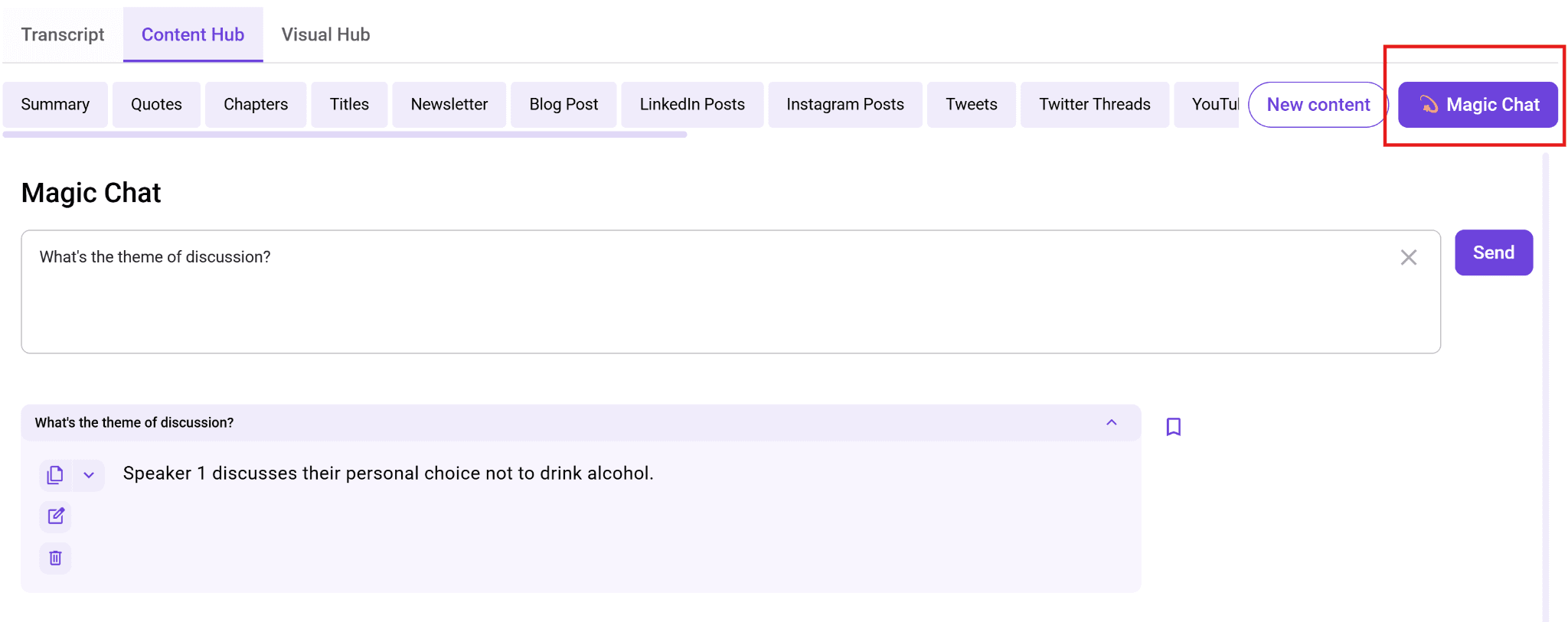
L'outil Magic Chat est également disponible dans cet espace. Vous pouvez poser des questions directement à votre transcription écrite, comme : "Quels exemples d'invités ont suscité la plus forte réaction ?" ou "Qu'a dit l'intervenant concernant les tarifs ?" pour obtenir une réponse immédiate sans avoir à relire tout le document.
Bonnes pratiques pour optimiser la transcription de vos MP3
Une bonne transcription écrite se prépare avant même de cliquer sur « Transcribe ». Quelques réflexes simples peuvent faire toute la différence entre un texte brut impeccable et un document fastidieux à réécrire.
Faites un test de 30 secondes avant de transcrire un long fichier
Découpez un court extrait du début, du milieu ou de la fin de votre MP3 et lancez une première transcription automatique. Vérifiez la précision des noms, des termes techniques et le traitement des bruits de fond. Si ce test est concluant, vous pouvez lancer la transcription complète.
Si le résultat n'est pas optimal, améliorez la qualité audio de votre fichier source avant de lancer un enregistrement d'une heure. Repérer un problème de qualité sur un test de 30 secondes vous évitera de devoir relancer le traitement d'un fichier de deux heures. C'est aussi l'occasion d'ajuster vos paramètres de transcription, d'activer l'identification des locuteurs ou d'ajouter du vocabulaire personnalisé. Perdre une minute au début permet d'économiser des heures de relecture par la suite.
Conservez toujours le MP3 d'origine avec sa transcription écrite
Ne supprimez pas votre fichier audio source une fois le texte obtenu.
Vous pourriez avoir besoin du MP3 plus tard pour extraire des clips audio, traduire à nouveau dans une autre langue, le partager avec des collaborateurs ou relancer une transcription avec un autre outil de reconnaissance vocale. Le stockage cloud est peu coûteux, alors que recréer un enregistrement supprimé est souvent impossible. Garder le fichier d'origine vous offre également une référence fiable pour vérifier une citation ou corriger un passage ambigu. Si vous devez générer des sous-titres ou des formats d'export spécifiques par la suite, disposer de l'audio source vous facilitera grandement la tâche.
Créez une liste de vocabulaire personnalisé réutilisable
Si vous produisez un podcast hebdomadaire, menez régulièrement des interviews clients ou travaillez dans un secteur d'activité spécifique, les mêmes noms propres et jargons reviendront sans cesse. Enregistrez-les dans votre dictionnaire personnalisé dès la première utilisation, puis enrichissez la liste au fil du temps.
Cette habitude réduit considérablement le temps de relecture de vos transcriptions récurrentes. Intégrez-y les noms de produits, de marques, de personnes, les acronymes et le vocabulaire technique que les modèles de reconnaissance vocale (speech-to-text) ont du mal à identifier. À terme, un dictionnaire personnalisé bien tenu garantit une cohérence parfaite sur tous vos projets.
Adaptez le débit binaire (bitrate) de votre MP3 au contenu
Un enregistrement vocal propre se transcrit parfaitement à un débit de 128 kbps. Les fichiers contenant de la musique, les interviews téléphoniques ou les environnements bruyants bénéficieront d'un débit de 192 kbps ou plus.
Si vous gérez vous-même l'enregistrement, choisissez le bon débit binaire avant de commencer. Si vous travaillez avec un fichier fourni par un tiers, analysez sa qualité sonore au préalable pour savoir à quoi vous attendre. Gardez à l'esprit que le débit binaire ne peut pas compenser une mauvaise prise de son. Une élocution claire, un bruit de fond minimal et un bon microphone auront toujours un impact bien plus important sur la précision de la transcription que la seule taille du fichier.
Déterminez votre objectif final avant d'exporter
Pour des sous-titres vidéo, privilégiez les formats SRT ou VTT. Pour un projet d'article de blog, les formats Word ou TXT seront plus adaptés, tandis que les archives de recherche sont plus faciles à gérer en texte brut.
Choisir le bon format dès le départ vous évite d'avoir à exporter plusieurs versions, sachant que certaines conversions suppriment définitivement les repères temporels (timestamps). Si vous travaillez en équipe, opter pour le bon format facilite également la relecture et le partage de documents, en évitant les problèmes de compatibilité logicielle.
Effectuez une passe rapide de relecture avant de publier
La transcription par intelligence artificielle excelle sur le langage courant, mais peut parfois achopper sur des noms propres complexes, des acronymes spécifiques, des chiffres ou du jargon technique. Une relecture rapide de cinq minutes permet de corriger ces petites coquilles qui nuisent au professionnalisme de votre écrit.
Concentrez votre attention sur les noms de personnes, les mentions de marques, les dates, les chiffres clés et le vocabulaire spécifique à votre secteur. Plutôt que de relire chaque ligne de la transcription écrite, ciblez en priorité les passages où plusieurs personnes parlent en même temps, là où la qualité audio faiblit, ou lorsque des termes très techniques sont employés.
Vérifiez la correspondance des locuteurs (Speaker Labels)
La reconnaissance des locuteurs permet d'identifier qui prend la parole, mais elle peut parfois attribuer une phrase à la mauvaise personne. Cela arrive notamment lorsque deux voix ont des timbres similaires, si les interlocuteurs se coupent la parole ou si un intervenant monopolise l'essentiel de la conversation.
Avant d'exporter votre transcription écrite, passez en revue les étiquettes de locuteurs pour corriger les éventuelles erreurs d'attribution. Une mauvaise attribution de parole peut s'avérer problématique si vous prévoyez de citer textuellement un collaborateur ou de partager le document avec des clients.
C'est un point de vigilance crucial pour les interviews, les enregistrements juridiques, les comptes rendus de réunions clients ou les podcasts, où l'identité de l'orateur est tout aussi importante que le propos lui-même.
Transformez votre MP3 en contenu prêt à l'emploi
La transcription de MP3 ne se limite plus à convertir de l'audio en texte brut. Le véritable enjeu est d'obtenir une transcription écrite facile à corriger, à structurer et à recycler sans y passer des heures.
WhisperTranscribe vous permet de centraliser tout ce processus. Vous pouvez transcrire votre MP3, éditer le texte, le traduire, identifier les locuteurs et générer des résumés, notes de synthèse, sous-titres ou articles de blog sans jamais changer d'outil.
Que vous ayez besoin de traiter un podcast, une interview, une réunion ou un mémo vocal, notre essai gratuit de 60 minutes vous permet de tester l'ensemble du workflow sur un projet réel avant de vous décider.
Démarrez votre essai gratuit et transformez dès aujourd'hui vos fichiers MP3 en contenus de qualité.