Here’s How to Transcribe TikTok Videos Effectively (Using 2 Different Methods)
Quick Summary
This guide shows you how to transcribe TikTok videos using two methods: manual transcription with TikTok auto captions and a faster, AI-powered workflow with WhisperTranscribe. Learn the pros and cons of each approach, and see why WhisperTranscribe offers a better way to transcribe TikTok videos. Visit our blog for more practical guides.
Looking to Transcribe Your TikTok Videos?
Transcribing TikTok videos can unlock valuable content for your repurposing, SEO, and accessibility needs. While many creators turn to manual transcription, using TikTok’s auto captions, this method can be time-consuming and inaccurate.
In this WhisperTranscribe guide, we’ll show you how to transcribe TikTok videos using two different methods. First, we’ll walk through the manual process, then introduce WhisperTranscribe, a faster, more efficient solution that automates transcription and simplifies content repurposing.
Why Listen to Us?
At WhisperTranscribe, we specialize in transcription workflows for creators and professionals. With years of experience in helping teams transcribe audio and video content quickly and accurately, we understand the challenges of transcribing TikTok videos. This guide is based on real-world experience, so you can save time and get more out of your content without the usual frustration.
Why Transcribe TikTok Videos?
Transcription of TikTok videos involves converting the spoken audio into written text, allowing you to easily access, edit, and repurpose the content.
Whether you're transcribing the entire video or just extracting key phrases, having a transcript gives you a text-based version of your video for more flexibility. This comes with several important benefits, such as:
Content repurposing: Turn your TikTok videos into blog posts, social media captions, or email newsletters to maximize their value.
Accessibility: Make your videos accessible to a broader audience, especially for those watching without sound or with hearing impairments.
Better engagement: Captions and text-based content can improve video retention and encourage more viewer interactions.
Better SEO: Accurate and well-synced transcripts make your TikTok videos more discoverable by search engines, helping you rank higher in search results.
Content scaling: Transcription lets you generate multiple content types from a single video, saving time and effort on content creation.
Now that we've covered why transcription is so valuable, let’s look at the different methods you can use to transcribe your TikTok videos.
How to Transcribe TikTok Videos Manually and Automatically
Method 1: How to Transcribe TikTok Videos Manually Using TikTok Auto Captions
To transcribe a TikTok video manually, you can start by using TikTok's auto captions feature. This method saves time but requires a bit of effort to transcribe and format the text accurately.
Step 1: Open the TikTok Video and Use Captions (If Available)
TikTok may automatically generate captions for some videos during upload or editing. If available, these captions can be used as a visual reference only while you manually transcribe the audio.
You can do this in two ways:
If you’re on the TikTok website, tap the three dots at the top-right corner of the video.
If you’re using the TikTok mobile app, long-press the video to open the options.
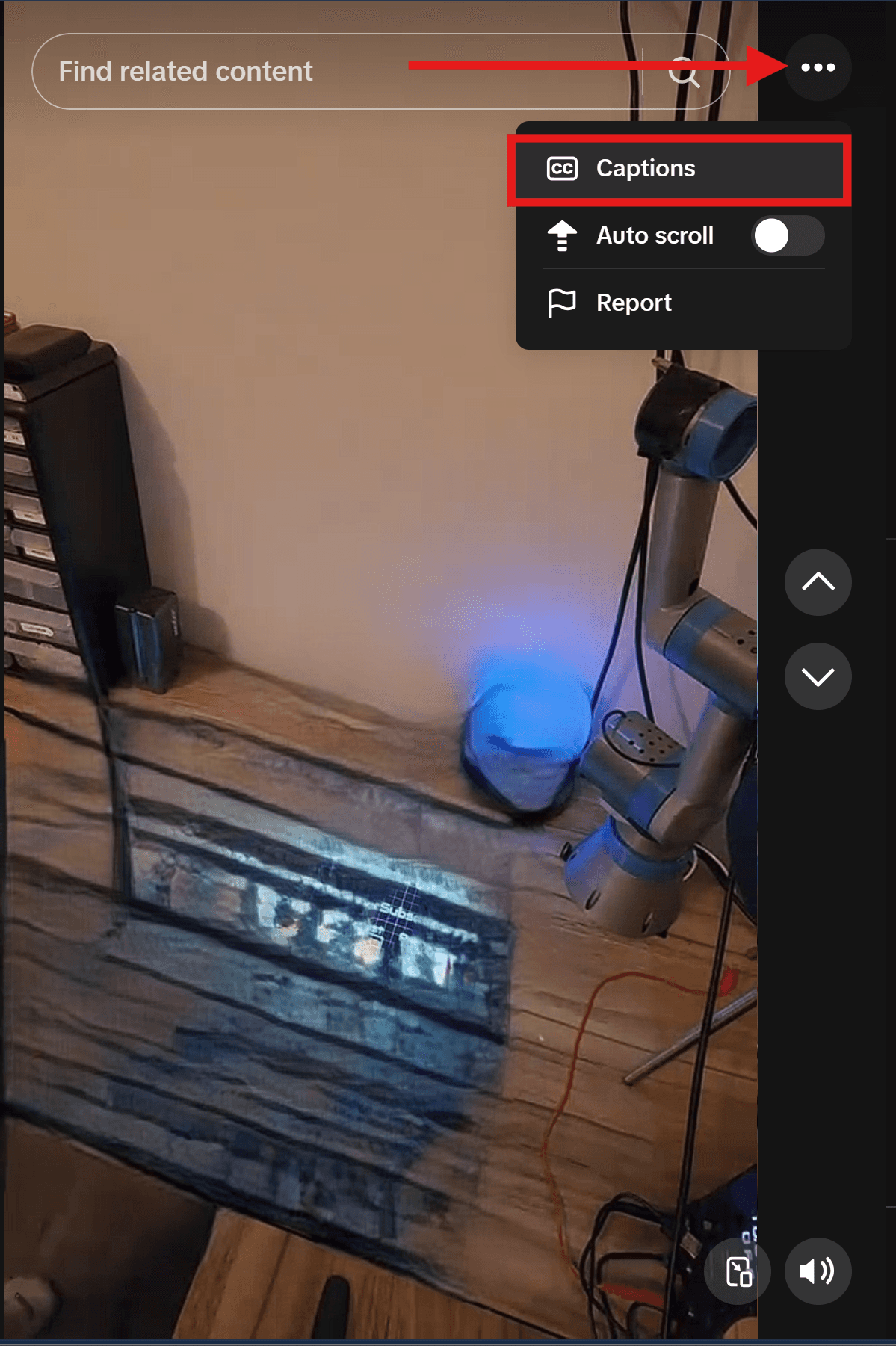
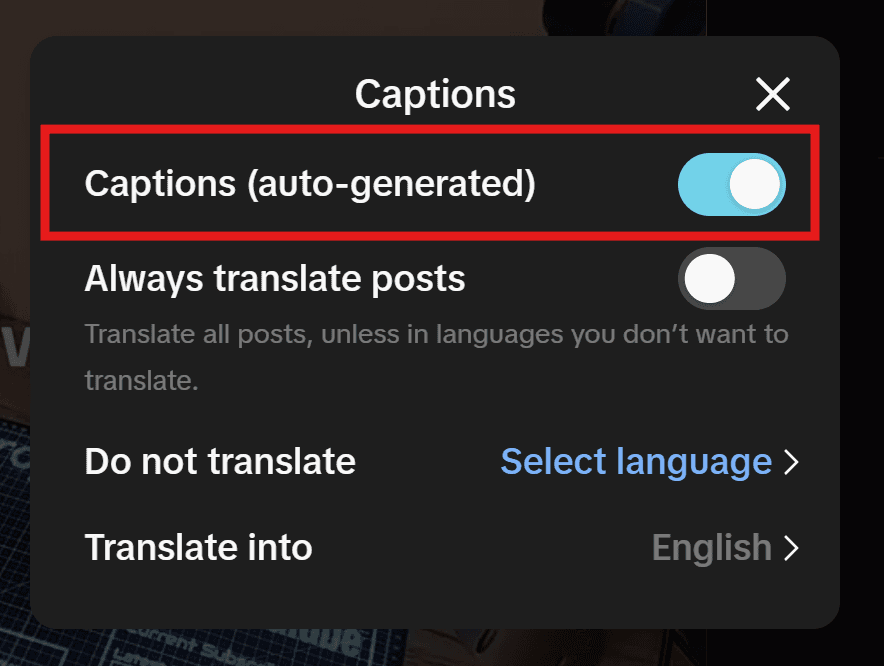
In either case, select “Captions” and toggle the feature on. Captions will now appear at the bottom of the video, giving you a helpful guide to start your transcription.
TIP: We recommend using a desktop or laptop for this process. You can open both the TikTok video and a text editor side by side, making it easier to type out the captions without constantly switching between apps. On mobile, you’ll have to minimize the app, which can slow you down.
Step 2: Type Out the Captions in a Separate Document
Once the auto-captions are visible, it’s time to start transcribing. But before you jump into typing, play the video from start to finish. The goal here is to become familiar with the video's message, tone, and context.
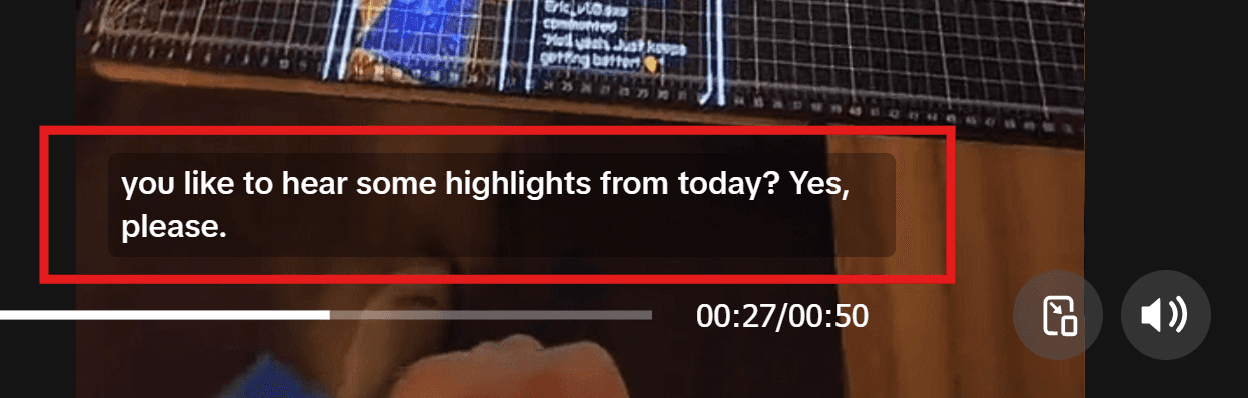
This first listen is important because it gives you a clearer understanding of the content before you start transcribing. So, pay attention to the speaker's accent, slang, key phrases, and repeated ideas.
Then, open a separate document (e.g., Google Docs or Word) and type out the captions as they appear. This method speeds up the process, as you’re simply copying what’s already on-screen instead of writing everything from scratch.
Step 3: Handle Missing or Inaccurate Captions
While auto-captions are a useful time-saver, they’re not always available or fully accurate. If the captions are missing or incorrect, you’ll need to manually transcribe.
In this case, play the TikTok video in short sections, pausing frequently to write down what you hear. If certain words are unclear due to background noise or the speaker’s accent, don’t hesitate to replay those parts until you capture them correctly.
Though this can be time-consuming, taking the extra time to ensure accuracy is key to having a reliable transcript.
Step 4: Review and Edit the Transcript
Once you’ve completed the initial transcription, go through it once more to review for any spelling or grammatical mistakes. Also, adjust the formatting for readability by breaking the text into shorter, more digestible lines if needed.
This is your opportunity to polish the transcript before you repurpose it into captions, blog posts, or social media content.
Method 2: How to Transcribe TikTok Videos Using WhisperTranscribe
We built WhisperTranscribe to provide a faster, more reliable transcription process for TikTok videos than manual methods.
All you have to do is paste the video link, and you can quickly generate accurate transcripts and even repurpose the content for various platforms. Let’s see how it works.
Step 1: Install and Open WhisperTranscribe
To begin, download the WhisperTranscribe desktop app from our website and install the app on your computer. You can download directly to your Windows and Mac devices from our website in minutes.
After installation, launch the app and sign up for a free trial that includes up to 60 minutes of transcription. This allows you to start transcribing your first TikTok video transcription project right away.
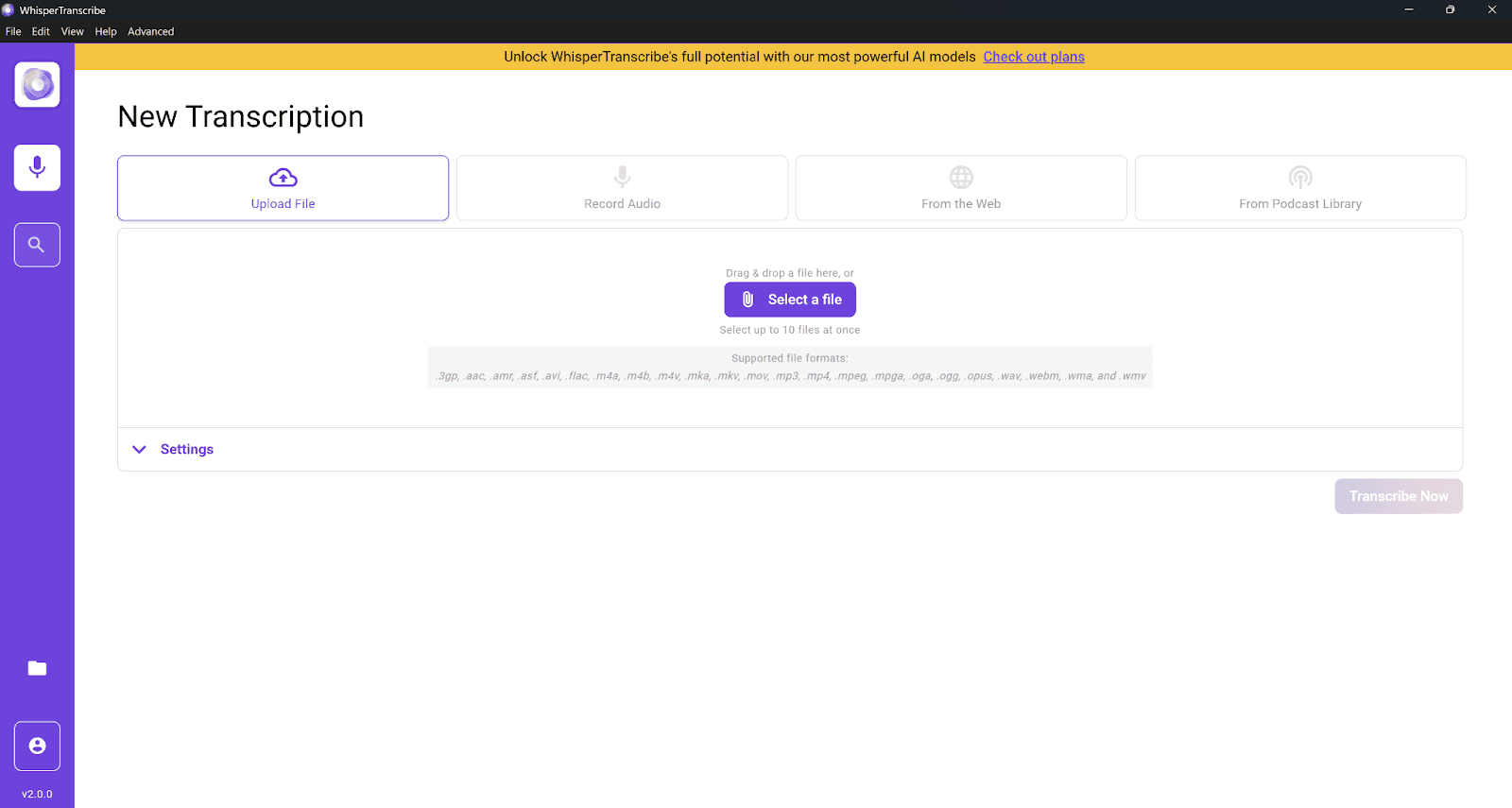
Step 2: Upload Your File or Paste the TikTok Link
Now, it’s time to get your TikTok video into WhisperTranscribe. You have two options:
Upload the video file: If you’re transcribing a TikTok video you plan to upload, you can simply upload the file from your device to WhisperTranscribe. To do that, click the “Upload File” option and select a file.
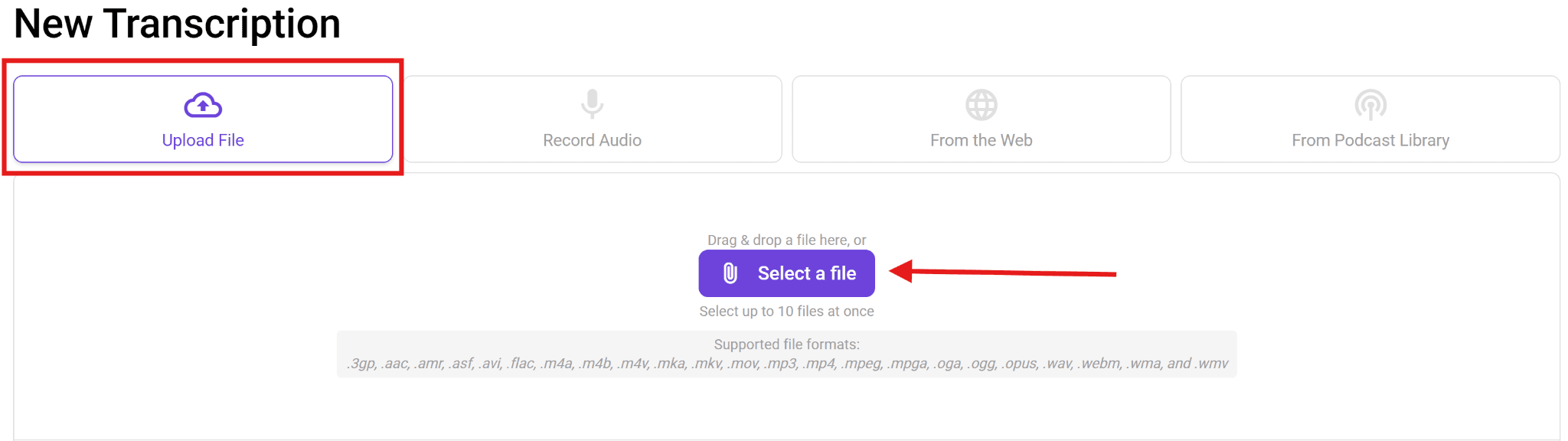
Paste the TikTok link: If you are transcribing a TikTok video that’s already live, you can simply copy the link to the video and paste it in WhisperTranscribe using the “From the Web” option. WhisperTranscribe will automatically pull the video content for transcription.
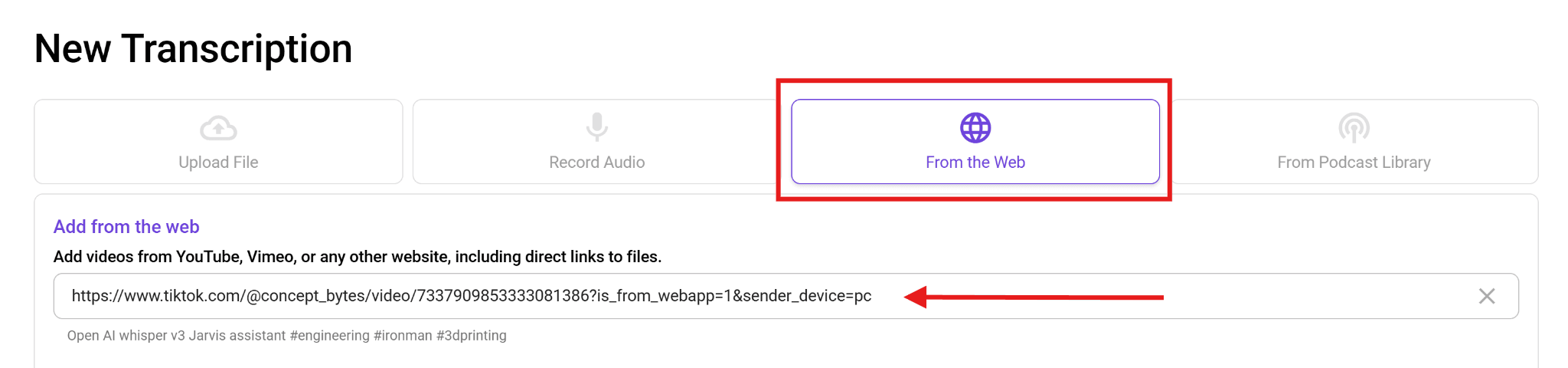
We support several audio and video formats like MP4, MP3, 3GP, AVI, MKA, MPEG, FLAC, OPUS, OGG, WAV, and M4A, so you usually won’t need to convert anything first. Just upload or paste the link, and you’re ready to go.
Step 3: Choose Your Transcription Settings
With your TikTok video now on WhisperTranscribe, you can set up the parameters for the transcription process. These parameters help our tool better understand your TikTok video so the transcription runs smoothly and accurately.
Here are the key to-dos:
Name your project: Give your transcription a title for easy reference, e.g., TikTok Video 002.
Select the language: Choose the primary language spoken in the video. WhisperTranscribe supports 55+ languages.
Enable speaker recognition: If your TikTok video features multiple speakers, toggle this on to automatically detect and label different voices.
Multiple languages: Toggle multiple languages on/off if there are multiple languages in the video.
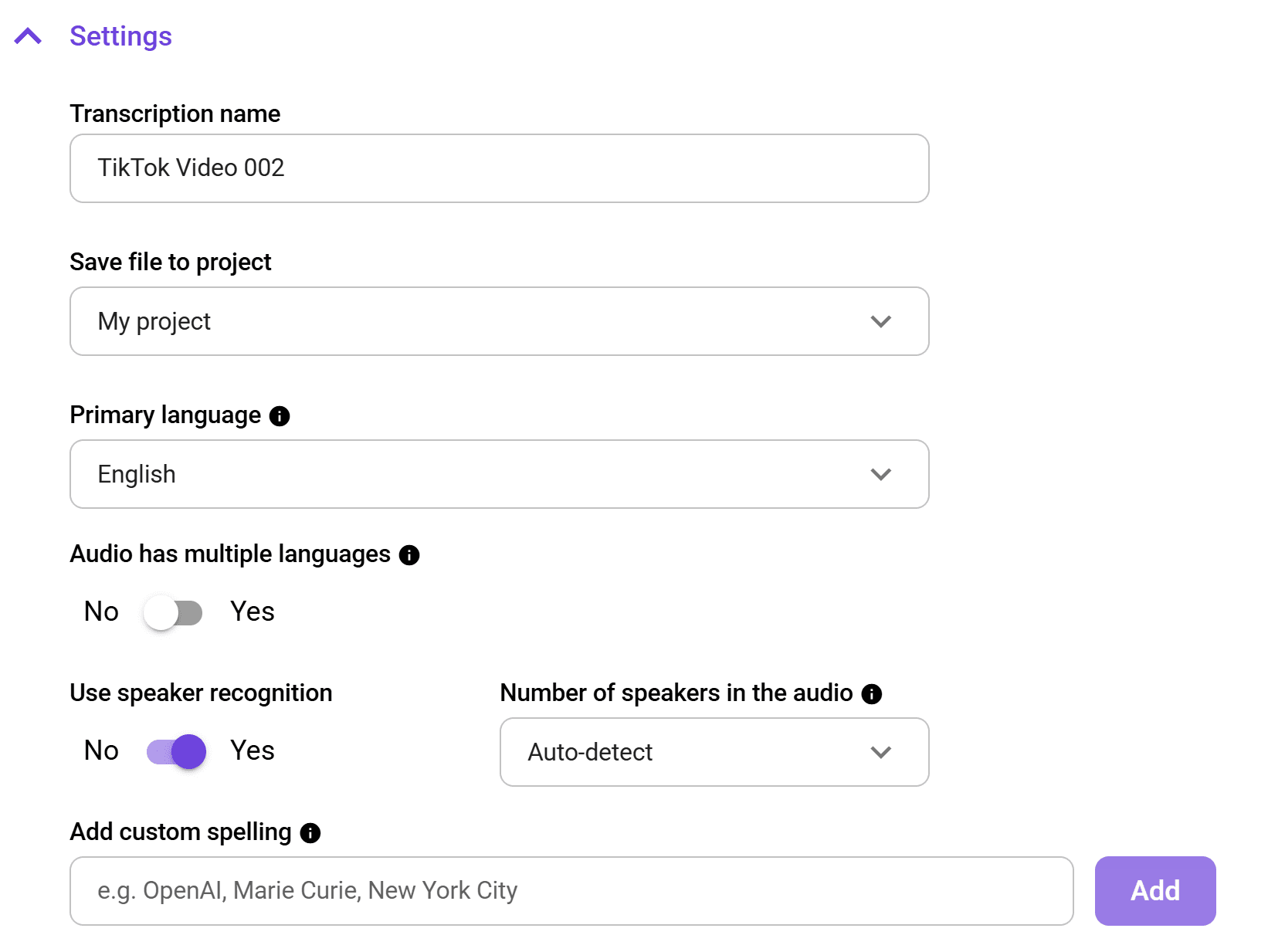
It takes only a few seconds to complete this step, after which you can move on to the actual transcription.
Step 4: Start Transcription
Once your settings are in place, click “Transcribe Now” and let WhisperTranscribe work its magic. The AI-powered engine will automatically process your TikTok video and convert the audio into text with high accuracy, handling background noise, fast speech, and accents.
Unlike the auto-captions method, where you have to type the captions manually, WhisperTranscribe does all the hard work. All you have to do is sit back and relax while you wait for your TikTok video transcript with up to 95% accuracy.
The process usually takes just a few seconds (for context, a 60-minute file takes around three to four minutes), so you don’t have to wait too long to have a fully transcribed document ready to review.
Step 5: Review, Edit, and Translate Your Transcript
Once the transcription is complete, it will open automatically in WhisperTranscribe’s built-in editor. Here, you can easily review and make any necessary adjustments. You can:
Correct any errors: Fix misheard words or phrases.
Adjust formatting: Clean up the text to improve readability.
Highlight key sections: Mark important parts of the transcript for later use.
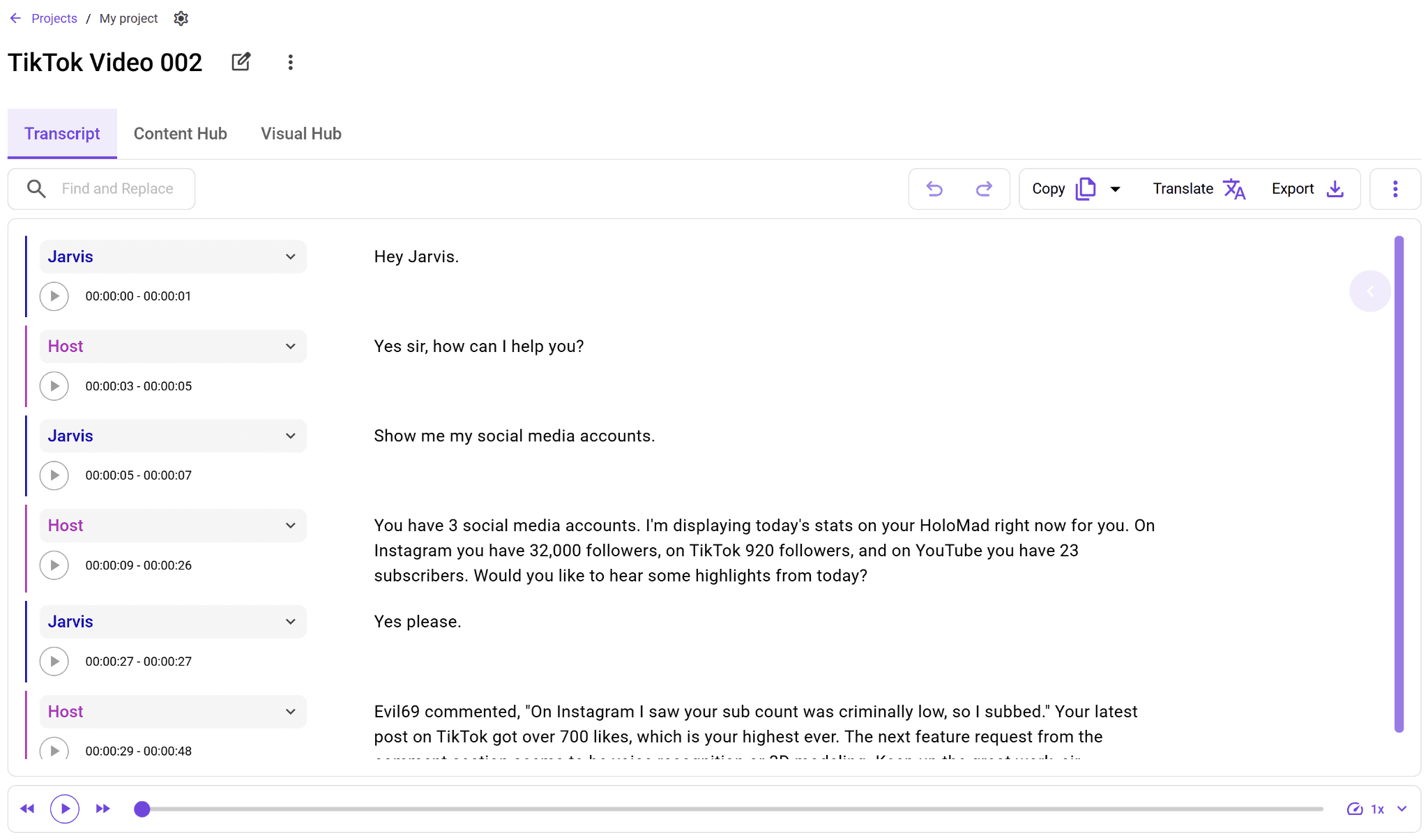
You can also translate the transcript into 99+ languages without losing the timing. Just click the “Translate” button and pick your preferred language from the options available.

Now you have a final transcript that is accurate, polished, and ready to be repurposed for other uses.
Step 6: Export and Repurpose the Content
While manual transcription using TikTok’s auto captions ends with a final transcript, WhisperTranscribe takes it a step further.
You can easily export your TikTok video transcript in formats such as SRT, VTT, TXT, and DOCX, making it perfect for captions, subtitles, documentation, and publishing workflows. But it doesn’t stop there.
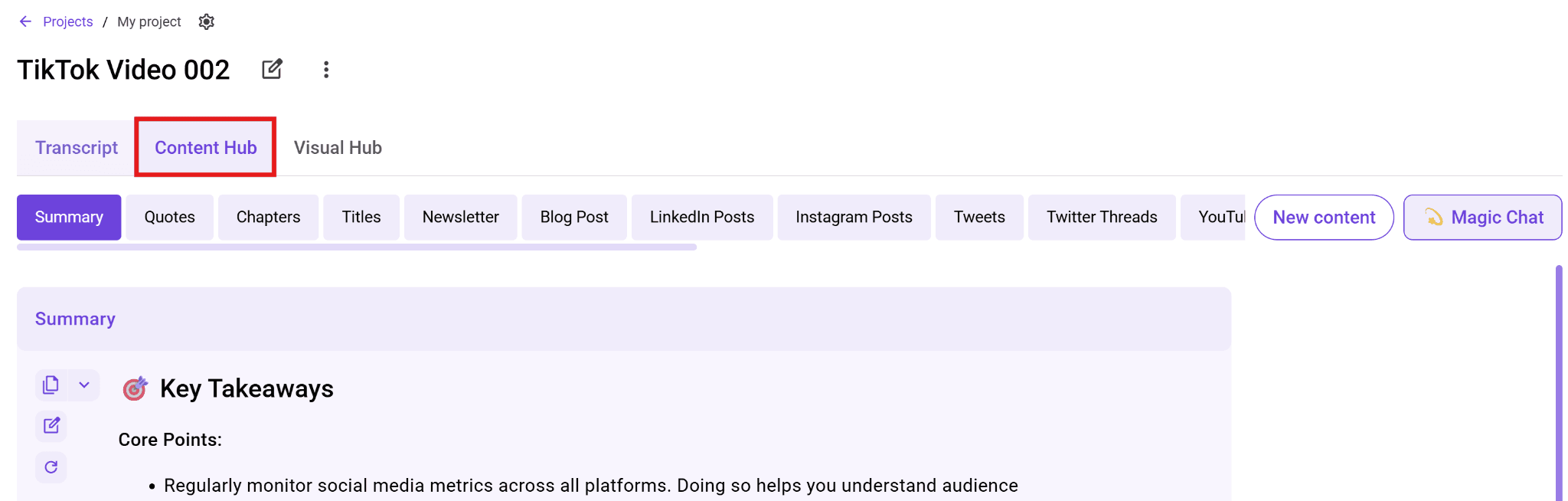
WhisperTranscribe can transform a single video transcript into blog posts, summaries, social media snippets, newsletters, and even AI-generated video clips. Simply head to the “Content Hub” tab to explore the range of content options you can generate from your transcript.
Need to extract key insights quickly from the video? Use the “Magic Chat” feature within the Content Hub. You can ask questions like, “What are the key takeaways from the video?” and our AI assistant will provide you with answers in real-time.
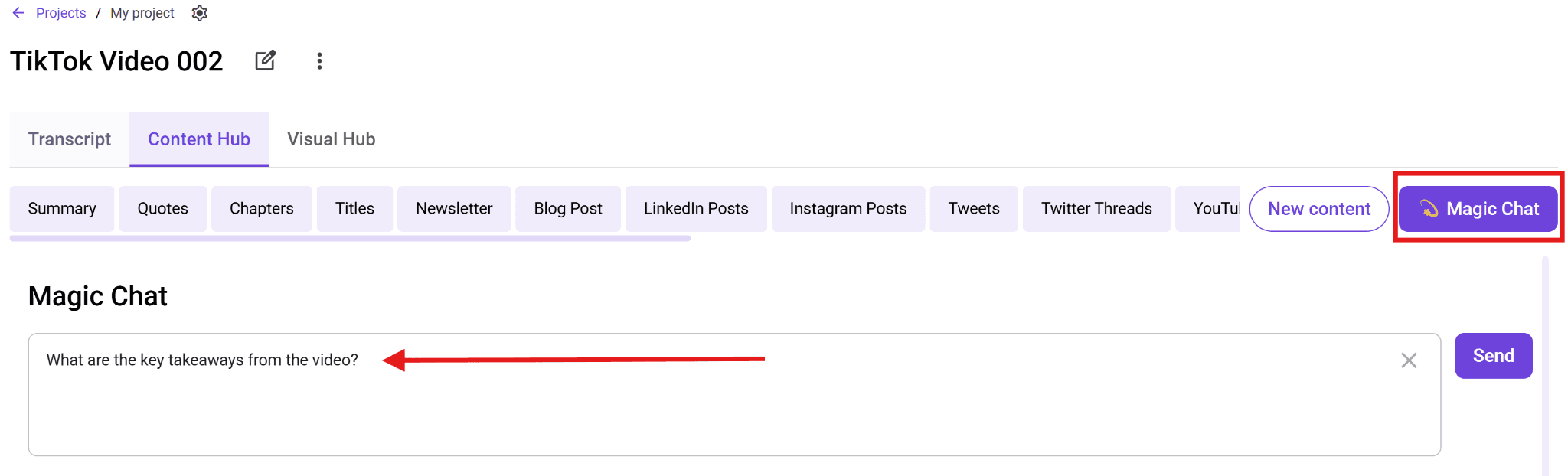
This feature is especially helpful for long TikTok videos, enabling you to pull out the most important points or quotes without sifting through the entire transcript.
WhisperTranscribe vs. Manual Transcription - Which is Better?
While manual transcription using TikTok’s auto-captions works for occasional use, it has several drawbacks that slow the process. WhisperTranscribe addresses these challenges by offering a faster, more efficient way to transcribe TikTok videos.
Feature | Manual Transcription | WhisperTranscribe |
Setup Complexity | Requires downloading or recording videos manually, then typing out captions or audio | Simple link-based workflow or direct upload with no extra downloads or setups |
Speed | Slower, since extra time is spent converting files before transcription can begin | Fast. Our AI-powered transcription process completes most videos in minutes |
Accuracy | Depends on auto-captions and personal hearing accuracy; background noise or unclear speech can cause errors | 95% accuracy, handles background noise, accents, and multiple speakers with ease |
Content repurposing | Requires manual editing and formatting for reuse (e.g., creating captions or blog posts) | Automatic generation of summaries, captions, social media posts, and blog content |
Multiple languages | Manual translation is required for non-English content | Translates transcripts into 99+ languages effortlessly while keeping timing intact |
Scalability | Not ideal for frequent use. Slow and tedious for large volumes of content | Scalable, ideal for high-volume transcription with no extra manual effort |
Speaker recognition | No automatic speaker differentiation; requires manual labeling | Automatically detects and tags speakers for clarity in interviews or multi-speaker content |
With features such as automatic transcription, content repurposing, speaker recognition, and multi-language support, WhisperTranscribe saves time and improves accuracy, making it the superior choice for TikTok video transcription.
Best Practices for Transcribing TikTok Videos
To ensure the highest quality and most efficient transcription, consider these best practices:
Use the Best Audio Quality: For the most accurate transcription, use the highest-quality video available. Poor audio can make transcribing harder and less accurate, whether you’re using auto-captions or transcription software.
Pay Attention to Accents and Slang: If the speaker uses a specific accent, slang, or fast speech, it’s essential to listen carefully and, if needed, replay sections. WhisperTranscribe handles these challenges better than manual transcription, but attention to detail is key.
Break It Down in Chunks: This applies only to manual transcription. Break the video into small sections to improve accuracy. Pausing frequently helps ensure you don’t miss any key points.
Review and Edit Your Transcript: Whether using manual or AI-powered transcription, always review the text to fix any mistakes, improve readability, and ensure proper formatting.
Repurpose Content Immediately: Don’t let your transcript sit idle. Turn it into captions, blog posts, social media snippets, and more to get the most value out of your TikTok videos.
Unlock Faster, More Accurate TikTok Transcriptions with WhisperTranscribe
While manual transcription using TikTok’s auto-captions works for occasional use, it has limitations, such as slow speed and inaccurate captions. WhisperTranscribe, on the other hand, offers a faster, more efficient solution with its AI-powered transcription, automatic content repurposing, and high accuracy.
Whether you need quick captions, blog posts, or social media snippets, our AI-powered transcription tool streamlines your workflow and helps you get the most out of your TikTok content.
Try WhisperTranscribe for free today and transform your TikTok videos in minutes.